A few years ago, an AI coding assistant mostly meant smarter autocomplete. Today, these tools can explain a confusing function, write tests, fix bugs across several files and even carry out multi-step tasks on their own. For developers, students and hobbyists, the question is no longer whether to use AI for coding, but which tool to use.
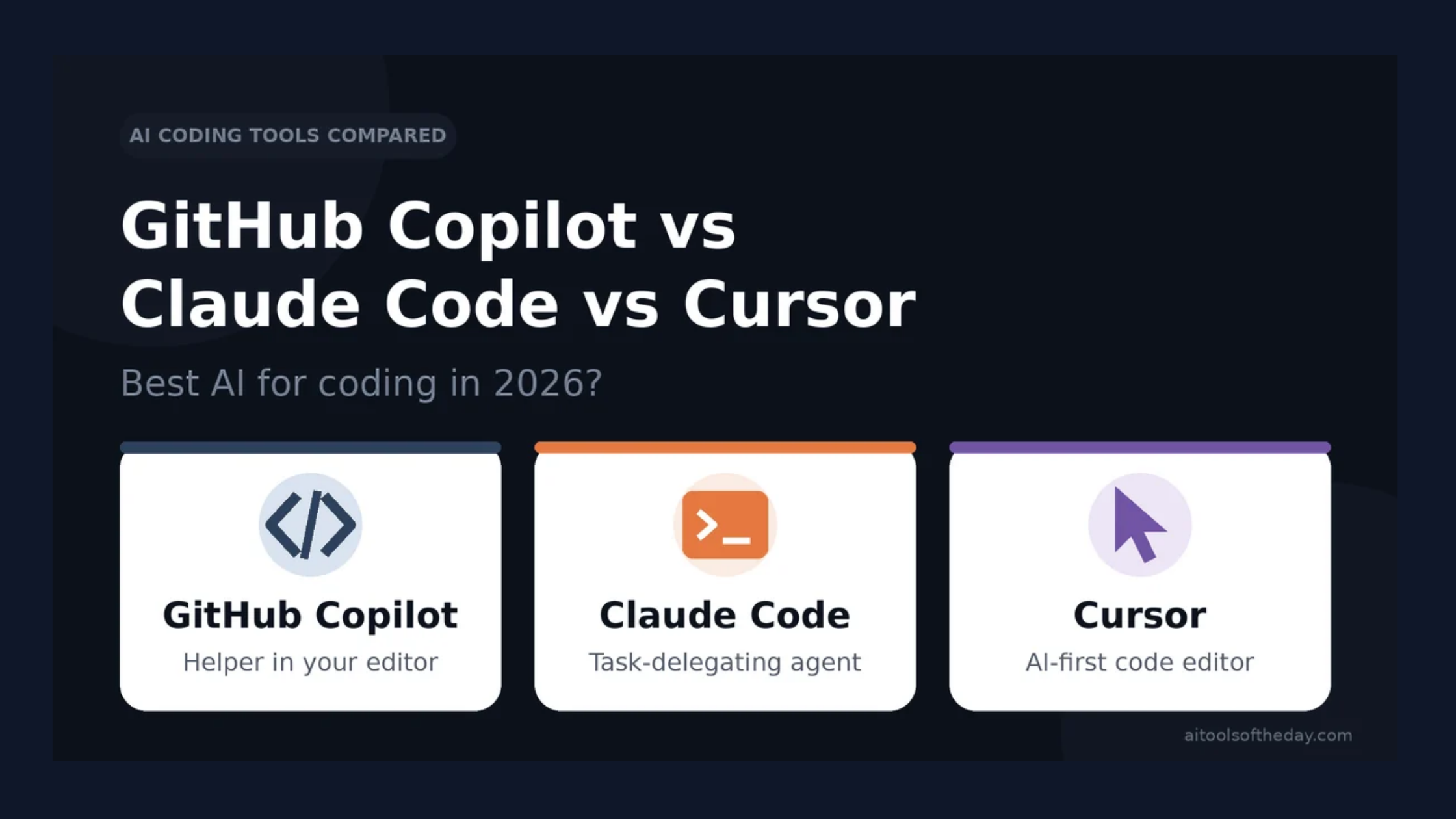
Three names come up again and again: GitHub Copilot, Claude Code and Cursor. They all help you write code faster, but they work in different ways and suit different habits. In this guide we compare them in plain language so you can choose with confidence.
Quick Verdict
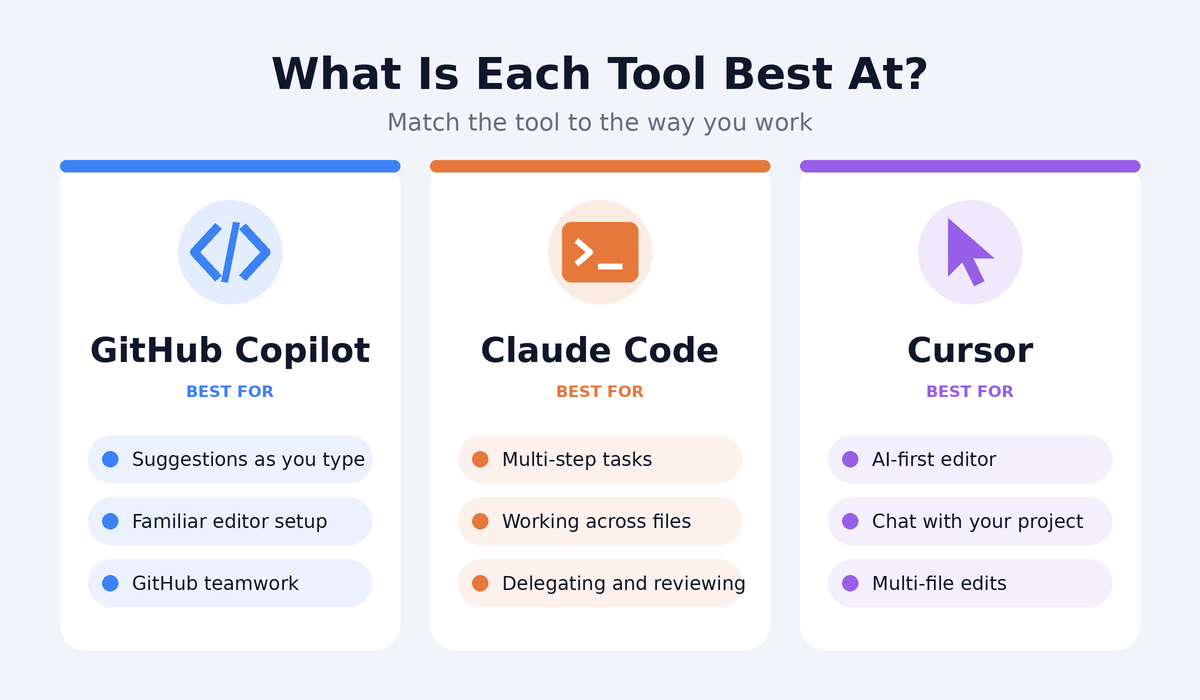
- Best for smooth help inside your existing editor and GitHub workflow: GitHub Copilot
- Best for handing off larger, multi-step coding tasks from the terminal or desktop: Claude Code
- Best for an AI-first editor experience with strong whole-project awareness: Cursor
There is no single winner. The right choice depends on how you like to work, which editor you use and how much you want the AI to do on its own.
How Each Tool Works
GitHub Copilot: The Assistant Inside Your Editor
GitHub Copilot is an AI coding assistant from GitHub. It plugs into popular code editors and gives you suggestions as you type, answers questions in a chat panel and can help with tasks such as explaining code, writing tests and suggesting fixes. Because it comes from GitHub, it also connects naturally with repositories, issues and pull requests.
Its biggest strength is familiarity. You keep using the editor you already know, and Copilot appears as a helper inside it. That makes it an easy first step for beginners and for teams that already work on GitHub.
Claude Code: The Agentic Coding Partner
Claude Code is an agentic coding tool made by Anthropic. Instead of only suggesting the next line, it is designed so you can describe a task in plain language, such as fixing a bug or adding a feature, and it works through the steps in your project.
Its biggest strength is delegation. It suits developers who are comfortable describing a goal and reviewing the result, especially for larger tasks that touch several files. Access generally requires a paid Claude subscription or an Anthropic developer account. You can learn more about the assistant behind it on our Claude tool page.
Cursor: The AI-First Code Editor
Cursor is a code editor built around AI from the start, with an interface that feels familiar to people who have used popular editors.
You can chat with your codebase, ask the AI to edit several files at once and let it help with larger changes. Because AI is part of the editor itself, the experience feels tightly connected, with suggestions, chat and edits all in one place.
Its biggest strength is that integration. If you want an editor where AI is the main feature, not an add-on, Cursor is a strong option.
Head-to-Head Comparison
|
Feature |
GitHub Copilot |
Claude Code |
Cursor |
|---|---|---|---|
|
Main style |
Assistant inside your editor |
Agent that works on tasks from terminal, desktop or editor |
AI-first code editor |
|
Code suggestions while typing |
Excellent |
Not its main focus |
Excellent |
|
Chat about your code |
Yes |
Yes |
Yes |
|
Multi-file and multi-step tasks |
Growing, agent-style features |
Core strength |
Strong |
|
Works in your current editor |
Yes, in many editors |
Yes, via terminal or integrations |
You switch to the Cursor editor |
|
GitHub integration |
Excellent |
Works with Git and GitHub tools |
Good |
|
Learning curve |
Very easy |
Moderate |
Easy to moderate |
|
Best for beginners |
Yes |
Possible, but more hands-off |
Yes |
|
Free option |
Limited free tier available |
Needs a paid Claude plan or developer account |
Free tier with limits |
Features, plan limits and prices change often. Check each official site for the latest details.
Round 1: Ease of Getting Started
GitHub Copilot is the gentlest start. Install it in your editor, sign in and begin typing. Cursor also feels natural if you have used a modern code editor, though you need to switch to it.
Claude Code asks you to be comfortable describing tasks and reviewing results, and many people use it from a terminal, which can feel new at first.
Winner: GitHub Copilot.
Round 2: Everyday Code Suggestions
For the small, constant help of finishing a line or suggesting the next function, Copilot and Cursor both shine because they work right where you type. Claude Code is less about line-by-line suggestions and more about completing tasks.
Winner: GitHub Copilot and Cursor (tie).
Round 3: Bigger, Multi-Step Tasks
When the job is something like "add a login feature and update the tests," the ability to plan, edit several files and check results matters.
Claude Code is built around this style of work, and Cursor's agent-style features are strong too. Copilot has been adding more agent-style abilities, but check its current capabilities.
Winner: Claude Code, with Cursor close behind.
Round 4: Understanding a Whole Project
All three can read and reason about your code, but the experience differs. Cursor is designed to keep your whole project in view inside the editor.
Claude Code explores your project as it works and can follow project instructions you provide. Copilot can use the files you have open and, depending on your plan and setup, more context from your repository.
Winner: Cursor and Claude Code (tie).
Round 5: Fit with Your Workflow
If your team lives on GitHub, Copilot fits neatly into pull requests and issues. If you prefer working from the command line, Claude Code feels natural. If you want one editor that does everything, Cursor is attractive.
Winner: Depends on your workflow.
Round 6: Pricing and Value
All three have ways to try them, but plans, usage limits and prices differ and change often. Copilot has had a limited free option and paid plans.
Cursor has a free tier with limits and paid plans. Claude Code is included with certain paid Claude plans or can be used through a developer account. Compare the current pricing pages and test before you commit.
Winner: Tie. Try the free options first.
Which One Should You Choose?
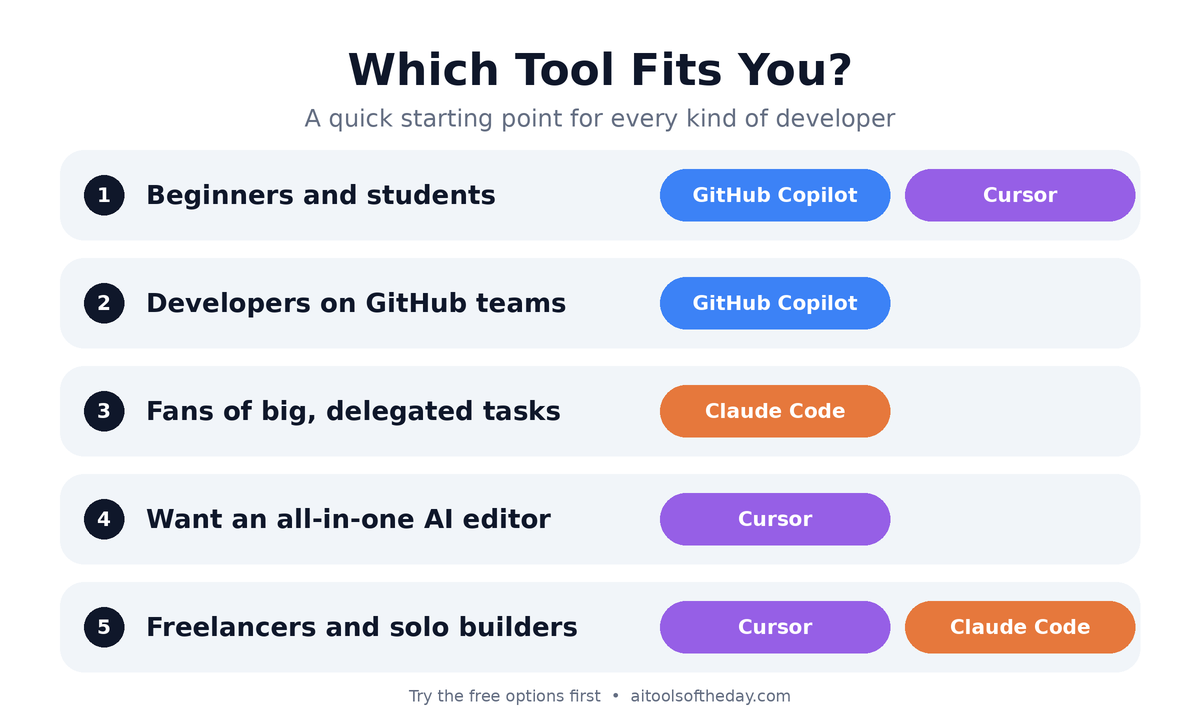
Beginners and students: Start with GitHub Copilot or Cursor. Both help you learn by suggesting code and explaining it as you go. Make sure you understand the code before you use it.
Professional developers on GitHub teams: Copilot is a natural fit, especially if your team already uses GitHub for code review and project management.
Developers who like delegating bigger tasks: Claude Code is worth a look if you want to describe a goal, let the AI work through it and then review the changes.
People who want an all-in-one AI editor: Cursor offers a smooth experience where chat, edits and suggestions live together.
Freelancers and solo builders: Many combine tools, using an editor-based assistant for everyday coding and an agentic tool for bigger tasks.
A Smart Way to Use AI for Coding
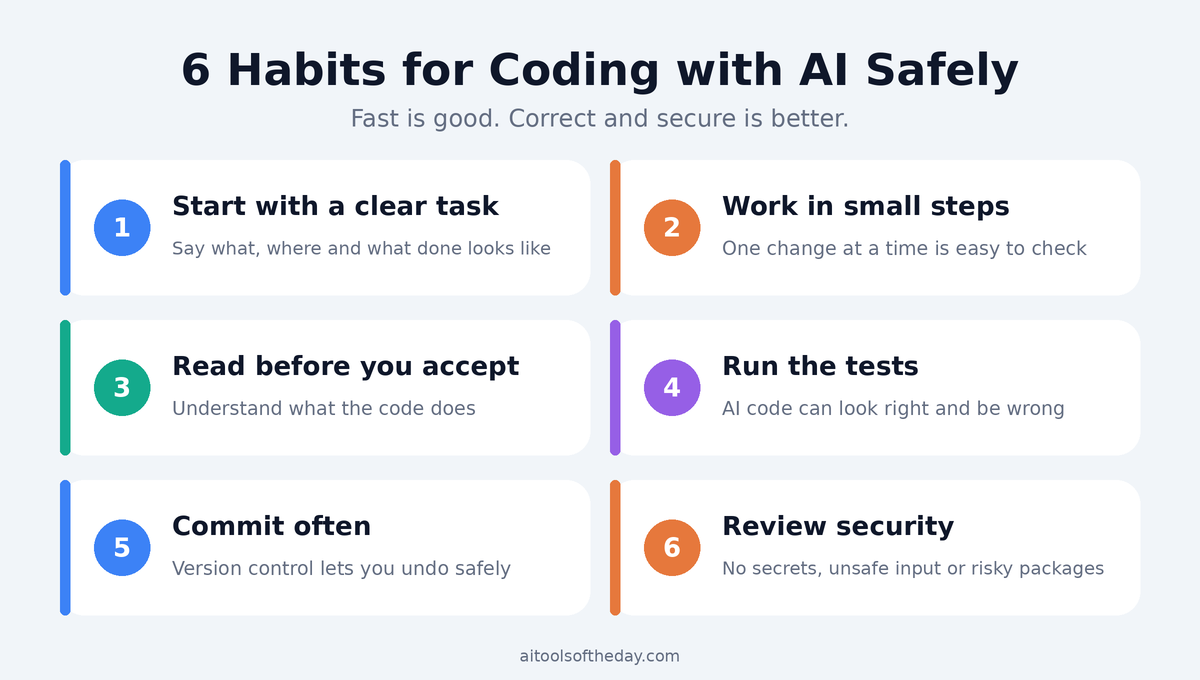
- Start with a clear task. Describe what you want, what files are involved and what a good result looks like.
- Work in small steps. Ask for one change at a time so it is easy to check.
- Read the code before you accept it. Make sure you understand what it does.
- Run tests. Ask the AI to write tests, then run them yourself.
- Use version control. Commit your work often, so you can undo changes safely.
- Review for security. Check for exposed secrets, unsafe inputs and risky dependencies.
Common Mistakes to Avoid
- Accepting code you do not understand. This leads to bugs that are hard to fix later and slows your own learning.
- Pasting private data. Avoid sharing passwords, API keys or confidential code unless you have checked your company's policy and the tool's privacy settings.
- Skipping tests. AI-written code can look right and still be wrong.
- Asking for too much at once. Big, vague requests often give messy results.
- Relying on one tool for everything. Each has strengths, so use the one that fits the job.
Frequently Asked Questions
Which AI coding tool is best for beginners?
GitHub Copilot and Cursor are usually the easiest starting points because they work directly inside the editor. Whatever you choose, take time to understand the code it gives you.
Can I use more than one of these tools?
Yes. Many developers use an editor-based assistant for everyday work and an agentic tool for larger tasks.
Will AI replace programmers?
AI is changing how developers work, but it still needs people to set goals, review code, make design decisions and take responsibility for quality and security.
Is AI-generated code safe to use?
It can be, but you must review and test it. Treat AI suggestions like code from a new teammate: helpful, but needing a careful check.
Are these tools free?
Some offer limited free options, and others require a paid plan. Check each official website for current pricing.
Is my code private when I use these tools?
Privacy depends on the tool, your plan and your settings. Read each provider's data policy, and follow your employer's rules for company code.
Final Verdict
The best AI for coding is the one that fits how you work.
- Choose GitHub Copilot if you want easy, familiar help inside your editor and tight GitHub integration.
- Choose Claude Code if you want to delegate larger, multi-step tasks and review the results.
- Choose Cursor if you want an AI-first editor where chat, edits and suggestions work together.
The smartest approach is to try the free options, test them on a small real project and keep the tool that makes you faster without lowering your code quality.
Want to explore more? Browse our AI tools directory to find coding assistants, testing tools and developer helpers.